
A group invitation concerns membership in a conversation. Linking a device authorizes another endpoint for your account. If a supposed group invitation asks you to use Linked devices, stop and independently verify the request.
A colleague sends an invitation to a project group. The page says to open your messenger’s settings and scan a code. You expected to join a conversation. Why does the instruction say Link a new device?
That mismatch is the useful warning. A group invitation and a device-linking request can both involve QR codes, but they authorize different things. Before scanning inside an account’s device settings, identify the device you intend to add and who controls it.
In Signal, the operation occurs inside the application’s account settings. That differs from a QR link opened in a phone browser.
How attackers disguised device linking
In February 2025, Google Threat Intelligence Group described Russia-aligned operations targeting Signal. UNC5792 disguised device-linking requests as group invitations; UNC4221 also used deceptive group and security-themed pages. Successful linking connected the victim’s account to an attacker-controlled Signal instance, enabling subsequent messages to reach it. These were abuses of a legitimate feature, not evidence that Signal’s encryption had been broken. GTIG: Signal targeting
Keep that observed mechanism separate from other ways to steal messages. The same report discusses malware and physical access to devices. An unexpected group invitation does not establish that any of those other methods occurred.
You do not need to identify the attacker to ask: does the operation on my screen match the task I agreed to do? Pause if joining the group has turned into adding a device to your account.
Joining a group and linking a device are different
Signal supports group links and group QR codes. A group administrator can enable a link and optionally require approval for people requesting to join. That process concerns participation in that particular group. Signal: group links
Device linking gives another endpoint a role in your Signal account. Signal’s current instructions place this action under Settings → Linked devices → Link a new device on the primary device. They describe unlocking the in-app camera with biometrics or the device unlock code, scanning the other device’s code, and choosing whether to transfer message history. The Signal PIN is different from the device unlock code. Signal: linked devices
A genuine biometric or passcode prompt can therefore protect an operation that you misunderstood. It checks your ability to unlock the device; it does not confirm that a project coordinator needs you to add somebody else’s computer. Enter a device passcode only in the legitimate device interface, never into a page or message supplied by the invitation.
| Intended task | Relevant question |
|---|---|
Join a project conversation |
Is this the expected group, and who administers it? |
Connect your own additional device |
Is this the device you intended to link and control? |
Respond to a supposed support warning |
Did you independently establish that any account action is needed? |
The third row deserves special care. Signal says its staff do not initiate an exchangeable chat conversation, phone call, SMS, or social-media contact with users. Its official in-app announcement chat is view-only. A conversational “support agent” asking for verification codes or recovery information should be reported and blocked through the app. Signal: support impersonation
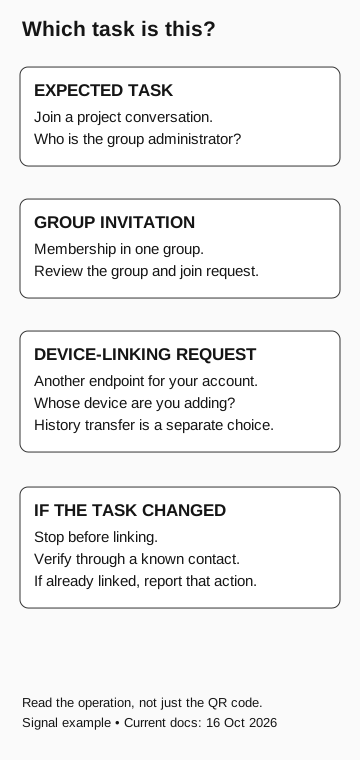
Which task is this?
Signal example
- Expected task
Join a project conversation. Who is its administrator?
- Group invitation
Membership in one group. Review the group and join request.
- Device-linking request
Another endpoint for your account. Whose device is it? History transfer is a separate choice.
If the task changed, stop before linking and verify through a known contact. Report any completed linking. Read the operation, not just the QR code.
What an extra device can receive
Signal’s technical explanation of linked-device synchronization describes an additional device as a separate endpoint, with its own keys. It also explains the optional transfer of history from the primary device. Encryption protects communication between participating endpoints; choosing the endpoints remains a security decision. Signal: linked-device synchronization
Avoid two shortcuts when describing an incident. “They only scanned a code” may omit the account action it authorized. “The entire message history was stolen” may exceed the available evidence. Establish whether linking completed, which device was added, when it was active, and whether history transfer was selected or remains unknown. A later clean device list does not reconstruct all earlier activity.
The distinction also explains why a password-focused response can miss the question. Start by reviewing the messenger’s linked devices, rather than assuming a work-account password change removes an endpoint from a separate messaging service. The response owner should follow the application’s current instructions and the organization’s incident process.
If you followed the linking instructions
Report the message, requested action, approximate time, and phone used. Say whether linking completed and whether you remember a history-transfer choice; leave uncertain details unknown. Do not repeat the operation to capture better evidence or send a pairing QR code to colleagues.
The responder can review the linked-device list with you through the application’s normal settings, arrange removal of an unrecognized device through the approved response process, and assess potentially affected communications. Preserve the minimum relevant device and timing details without delaying containment. Identify whether sensitive work conversations used the account without exporting every personal conversation by default.
A device name is a clue for investigation, not proof of the operator behind it. Likewise, removing a device addresses its continuing connection; it does not establish that previously received information has been recovered from whoever held it.
Name the action when reporting it
“This invitation asks me to add a device I do not control” gives the service desk more to investigate than “a suspicious QR code.” Include the expected group, the operation displayed, and whether linking completed. Keep pairing codes and personal conversation contents out of the report.