
Report the original message, approximate time, phone and browser, and the last action you remember. Distinguish scanning, opening, entering information, submitting, and approving; do not send passwords or scan again to gather evidence.
You open a work email on your laptop. It asks you to scan a QR code with your phone to view a document. A sign-in page appears, and something feels wrong. What should you tell the service desk?
Start with what you actually did: saw the code, scanned it, opened the page, typed information, submitted a form, approved a prompt, or downloaded something. Those are different events. You do not have to decide whether your account was compromised before reporting them.
The most useful report connects the original message to the activity on your phone. A screenshot of the email alone may leave the responder unable to tell which destination opened or what happened next.
Why a QR code changes the investigation
A QR code can encode a web address. In QR-code phishing, also called quishing, that address takes the recipient toward an attacker-controlled interaction. The code is a delivery format; the page and subsequent requests determine the mechanism.
The FBI’s January 2026 Kimsuky advisory describes targeted messages from 2025 using QR codes. One June example offered registration for a nonexistent conference. The registration page led to a fake Google sign-in page. The advisory also recommends independent source verification and clear reporting procedures. FBI: Kimsuky QR-code campaigns
The scan led to a credential request in that campaign. Other destinations can ask for approvals or downloads. Report the action you encountered; scanning a code alone does not establish an MFA bypass.
Moving to a phone can also move the activity away from the laptop where the message arrived. The service desk needs to know about both devices, including whether the phone is personal or work-managed. A personal phone should not be assumed invisible, and a work-managed phone should not be assumed fully observed. The responder must establish what records are available.
Report the last action you remember
Stop interacting with the suspicious page and contact your organization through its normal reporting route. Do not use the contact details supplied by the suspicious message. Do not scan again to reconstruct the event or complete the sign-in to find out whether it works.
Use the closest description below. If you are uncertain, say so.
| What you remember | What to tell the service desk |
|---|---|
Camera showed a link preview |
“I saw a destination preview; I do not remember opening it.” |
A page opened |
“I opened it in this phone’s browser at about this time.” |
Information was typed |
“I typed my work username and password; I am unsure whether I pressed submit.” |
A form was submitted |
“I pressed sign in and then saw this result.” |
An approval or download followed |
“I approved this request” or “I downloaded/opened this file.” |
Do not send the password, one-time code, session cookie, or other secret in the report. Identify the account and the kind of information involved. If you typed a password but did not submit the form, include that detail anyway; let the response team assess the page behavior rather than deciding that the missing click guarantees safety.
If credentials or approvals were involved, make that clear immediately and follow the service desk’s containment instructions. Do not wait until you can provide a perfect timeline.
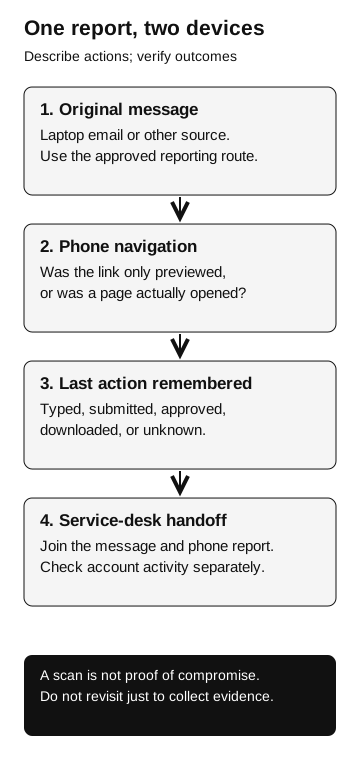
One report, two devices
- Original message
Record the laptop email or other source through the approved reporting route.
- Phone navigation
Was the link only previewed, or was a page opened?
- Last remembered action
Typed, submitted, approved, downloaded, or unknown?
- Service-desk handoff
Join the message and phone report. Check account activity separately.
A scan does not prove compromise. Do not revisit the destination just to collect evidence.
A useful report in four sentences
Here is a fictional employee report:
At about 10:20 local time, I opened an email titled “Updated benefit guide” on my work laptop. I scanned its QR code with my personal phone and opened the page in Safari. I typed my work username, but I am unsure whether I submitted it; I did not type a password or approve a prompt. I stopped and reported the original message through our phishing-reporting route.
This report gives the responder a starting message, an approximate time, a second device, a browser, and an uncertain action to investigate. It does not invent a final outcome.
Add the visible destination or a screenshot if it is already available and your reporting process permits it. Full URLs and screenshots can contain private information or access-bearing links, so send them only through the approved channel. Do not reopen the site solely to obtain them. Keep the original email available for the response team rather than circulating it to colleagues.
What the service desk needs to check next
First connect the employee’s report to the original message. Record the approximate scan and navigation times with their timezone, the affected account, and the phone/browser context. Then identify who can review the relevant identity, device, or application evidence under the organization’s process.
Keep the employee’s account of the page visit separate from what the logs confirm. A sign-in record can help explain authentication. Evidence of a protected operation is needed to establish what the account accessed. Our sign-in evidence guide explains why one record should not stand in for the whole chain.
Do not silently turn “no password entered” into “no risk,” or “QR code scanned” into “account compromised.” Ask about the actual request and retain uncertainty. Conversely, a legitimate page reached through the code may resolve the concern; investigate rather than treating the report itself as proof of wrongdoing.
For training, use a harmless destination and an explicit stop point. Observe whether a participant reports the original message and the phone action. You can improve that handoff without collecting real credentials. The related channel-handoff guide covers verification when a conversation changes channels; the steps above cover evidence after a device change.
QR-code phishing is also different from device-code phishing, which involves authorizing a sign-in through a particular authentication flow. A QR code could deliver many kinds of instructions. Naming the actual page, request, and last action gives the response team something more useful than the label alone.