
What should you check before a password-vault backup or migration?
Verify the project through an established route, use the approved application and process, and identify the export format and destination. A legitimate migration may require sensitive data handling; a message promising to protect your vault does not authorize credential entry or file sharing.
Before acting on a password-manager backup or migration request, check what it asks you to hand over. A promise to protect your passwords does not make the destination safe.
There are two different risks to recognize: entering a vault credential into a fraudulent page, and sending a genuine export to an unauthorized destination. The first may happen without any export at all. The second can happen while using the real application.
A backup story can lead to a phishing page
In January 2026, LastPass reported emails claiming maintenance was imminent and urging recipients to back up their vaults within 24 hours. Its advisory described links that redirected to a phishing site and emphasized that LastPass was not issuing that backup request. LastPass: January campaign advisory
LastPass reported a phishing destination, not confirmed vault-file uploads. The backup story was used to solicit a sign-in.
For an unexpected request, use the organization’s established support route or the service’s known application to check the claimed change. Do not ask the same message, its reply address, or its supplied phone number to verify itself. Our callback guide explains that independence problem.
A real export has its own handling requirements
A vault export is a copy of selected password-manager data in a transferable format. Its protections depend on the application and export option. Do not assume the file remains encrypted because the vault was encrypted.
For example, 1Password’s desktop export documentation describes unencrypted files, including 1Password 8’s .1pux and CSV options. It warns against emailing or storing those files online. Bitwarden documents plaintext CSV and JSON alongside an encrypted JSON option. These are product-specific examples, not a rule that every migration creates the same file. 1Password: desktop exports, Bitwarden: export formats
Both vendors also document ways to access an existing account on another device without creating a file export. Bitwarden’s cited guidance covers cloud-hosted accounts. A request to “set up your new laptop” deserves clarification if it suddenly requires sending the vault to someone else. 1Password: moving within the service, Bitwarden: adding a device
Check the project, format, and destination together
Use three questions before a planned migration:
- Which approved project requires this? Find the owner and change record through the established internal route.
- What exactly will be transferred? Confirm the product, platform, format, and data scope with the owner. Do not open a real export in an unapproved online viewer to find out.
- Where will it go? Confirm the destination application or approved handling location, who can access it, and how temporary copies will be addressed.
An encrypted file still needs an approved destination. A genuine IT colleague still needs an approved process. These checks let a legitimate migration proceed while preventing an unsolicited message from deciding how credentials are handled.
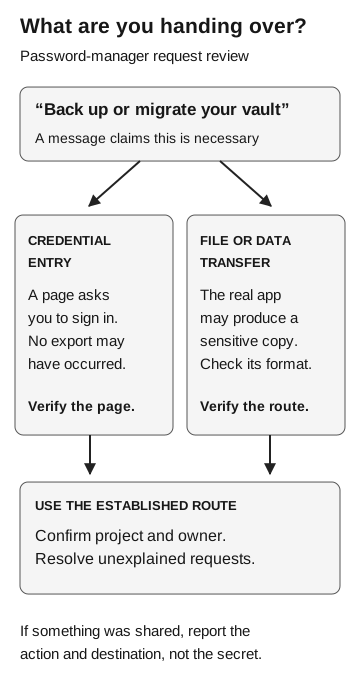
What are you handing over?
- Credential entry
A page asks you to sign in. No export may have occurred. Verify the page.
- File or data transfer
The real app may produce a sensitive copy. Check its format and verify the route.
For a claimed vault backup or migration, confirm the project and owner through the established route. If something was shared, report the action and destination, not the secret.
If you already entered something or shared a file
Report the message, time, destination, and action through the incident process. Say whether you entered credentials, created a file, or uploaded one. Do not attach vault contents or repeat a master password in the report.
The response team needs those distinctions to assess the exposure. For a file, identify the product and export format if known. For a suspicious sign-in, identify the page and what kind of information you supplied without sending the secret itself. Let the service owner direct credential and session response; a vault-account password change is not evidence that every credential copied into an export has changed.
Troubleshooting files need the same scrutiny: the diagnostic-file guide explains how to review their contents and destination before sharing them.