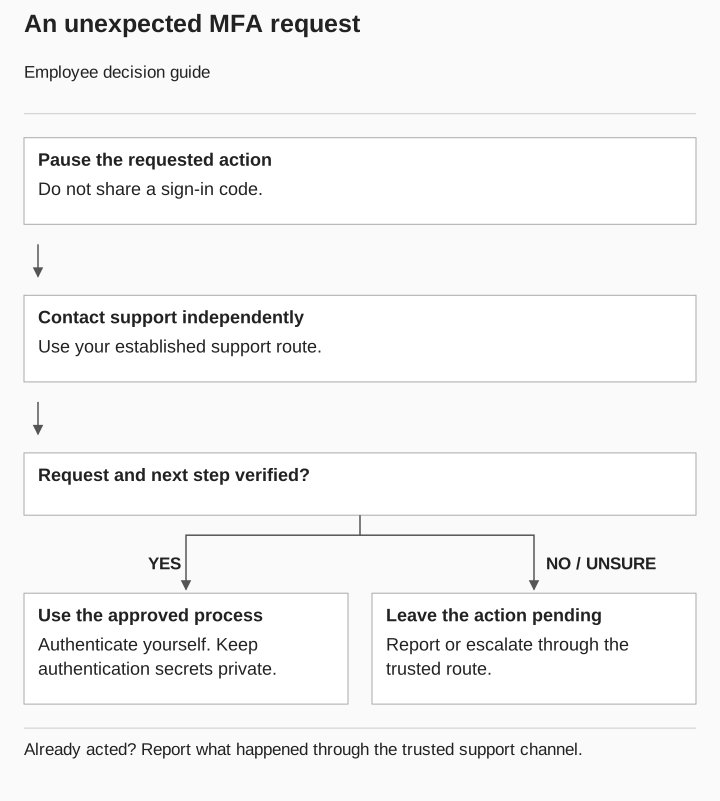

What should you do with an unexpected request for an MFA code or approval?
Pause the action and contact support through an established route you choose independently. If you already shared a code or approved a request, report it promptly with the time and action. You do not need to prove an attack before asking the response team to investigate.
You do not need to identify a threat actor or prove that the caller is dishonest. Pause if you cannot connect the approval to something you intended to do.
Multifactor authentication, or MFA, uses more than one kind of authentication factor, such as a password and a device or biometric check. Microsoft documents codes and approval methods among its authentication options. Microsoft: how MFA works

An unexpected MFA request
- Pause the action
Do not share a sign-in code.
- Contact support independently
Use your established route to verify the request and next step.
- Verified
Use the approved process and authenticate yourself. Keep secrets private.
- Unverified or unclear
Leave the action pending and report through the trusted route.
Already acted? Report what happened; you do not need to diagnose an attack first.
Separate the code from the conversation
A caller may describe a sign-in code as a way to confirm your identity or fix an account problem. Before acting, ask yourself what the screen says you are approving. Keep sign-in codes and recovery secrets out of phone conversations, messages, and support tickets.
If a genuine support process requires you to authenticate, complete the approved authentication step yourself after independently verifying the support interaction. Do not turn that into permission for someone else to receive your sign-in code or direct an unexplained approval.
Distinguish the different actions. Reading a code aloud, approving a sign-in, registering a new method, and authorizing an application are different requests. Report the actual action, rather than describing all of them as “an MFA issue.”
Microsoft’s guidance for unrequested Outlook mobile sign-in prompts tells users to deny requests they did not initiate. It lists several possible explanations, including an attempted account access, an accidental entry, or a delayed request. Microsoft: unrequested sign-in prompts
For a work account, use your organization’s reporting process to have the event checked. Report the unexpected prompt; let the support team investigate what caused it.
Use an independent route back to support
Open the support portal from your usual bookmark or find the help-desk contact in an established internal directory. Avoid using a replacement number or link supplied during the interaction you are trying to verify.
Tell the support team the purpose of your contact: “I received an unexpected request to approve a sign-in, and I want to check it before doing anything.”
If you already have a support ticket, give the independently reached team its reference. Ask them to confirm the requested action and the approved next step. Possessing a ticket number should not, by itself, end the verification process.
When you cannot reach support, leave the unexplained action pending and use the published escalation route. If your organization has no accessible route, ask your manager where to report the request. Do not resolve the uncertainty by accepting the caller’s replacement process.
If you already shared or approved something
Report promptly through the trusted support or security channel. State what happened without trying to fix the account through the original caller. Follow the response team’s instructions for your specific account and application.
Give the approximate time, affected account, requested action, what you actually did, and the application or screen involved. Include where any follow-up message arrived. Leave out passwords, working tokens, actual sign-in or recovery codes, and unnecessary personal documents. Keep guesses distinct from what you remember.
If you are uncertain whether you approved something, say that. The responder can investigate the uncertainty. Do not delete related messages or attempt account changes simply to make the report look tidier; ask the team how to preserve the relevant information.
For the support team investigating that report, what an MFA claim means explains why a recorded MFA result does not establish exactly what the employee saw or approved.
Save the route before you need it
Bookmark your organization’s support portal and identify its urgent reporting option. Ask the help desk to explain which authentication steps you may encounter during legitimate support and how to confirm them.