
Does approving a remote-support session establish that the helper is trusted?
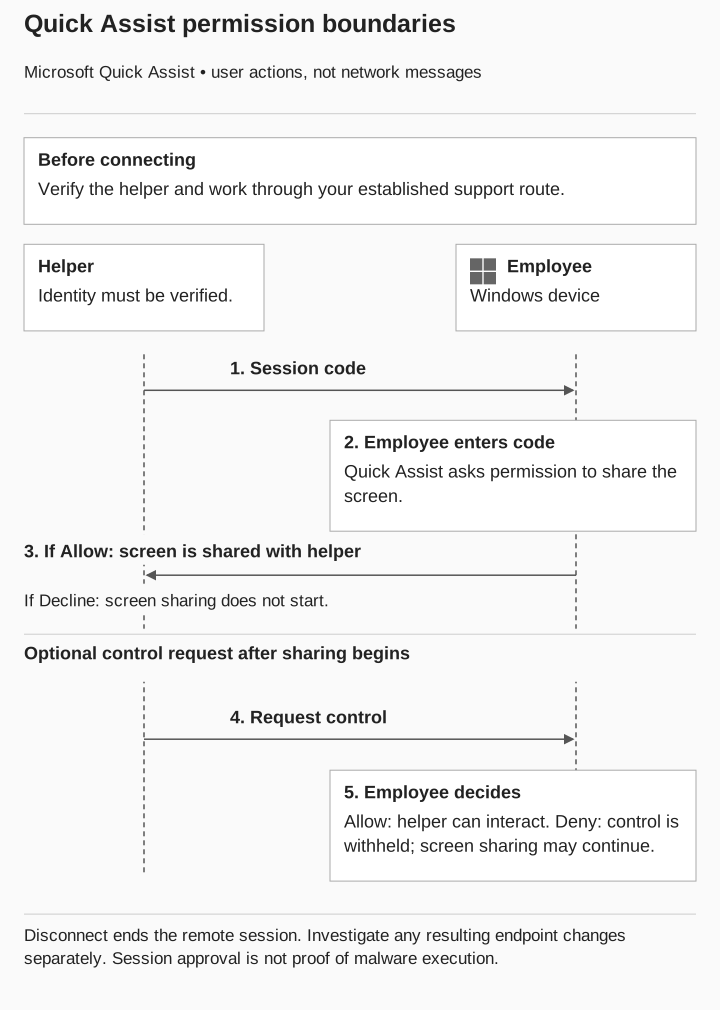
No. The employee must verify the helper and the task independently. In Quick Assist, allowing screen sharing and allowing requested control are separate decisions. Review what was granted and what happened on the endpoint rather than assuming every connected session had control.
A familiar remote-support window does not tell you whether the helper is assigned to the job. Verify the person and the work before approving the connection.
That distinction is central to help-desk impersonation. A review needs to follow the caller’s claimed role into the specific permission the employee granted. Opening a support tool, sharing a display, and allowing someone to control a device deserve separate entries in the evidence record.
The help-desk verification guide covers a caller requesting an account change. Here, the direction is reversed: someone claiming to be support asks an employee to open their device. Follow the separate permissions for viewing and controlling it, then decide what endpoint evidence would be needed after the session.
What Microsoft observed
In May 2024, Microsoft reported Storm-1811 misusing Quick Assist in voice-phishing attacks. The report describes support impersonation, including calls offering to resolve email flooding, followed by remote access and malicious activity. Some observed cases led to Black Basta ransomware. A June update added Teams-based contact to the reported activity. Microsoft Threat Intelligence: Quick Assist misuse
Microsoft attributed those observations to the activity it investigated. For a local assessment, establish which interaction, permissions, and endpoint actions occurred.
The important connection is the transition from a believable support request to device access. A campaign summary that jumps straight from “phone call” to “ransomware” hides the intervening decisions that an organization can examine and improve.
Separate the support permissions
Quick Assist is a remote-assistance application. Microsoft’s documentation describes a helper and a person sharing their device. The person receiving assistance approves screen sharing, and control requires an additional request and approval. These are distinct steps in the documented workflow. Microsoft: how Quick Assist works
Screen sharing lets the helper see the displayed workspace. Approving control lets them interact with the device. Neither approval answers whether the helper was independently verified or whether the organization approved the work.
Do not describe a connection code as proof of employment or an approved support ticket. Treat it as part of establishing the remote connection. The support process still needs to establish who the helper is, why the session is necessary, and what the employee should expect during it.

Quick Assist permissions
First verify the helper and task independently.
Connect and share
- Helper sends a code
Employee enters it in Quick Assist.
- Employee decides on sharing
Allow: helper can see the screen. Decline: sharing does not start.
Optional control request
- Helper requests control
This is a separate request after sharing begins.
- Employee decides on control
Allow: helper can interact. Deny: control is withheld; sharing may continue.
Disconnect ends the session. Investigate resulting endpoint changes separately.
Verify the assignment, not just the ticket number
Use the established support portal or contact route to confirm the assigned helper and purpose. A ticket for a printer issue does not automatically authorize a broader device review. Ask the support owner to resolve an unexpected change in scope before continuing.
If no corresponding assignment exists, decline the connection and contact support independently. The employee does not need to prove malicious intent before refusing an unverified request. When the assignment is confirmed, the approved support workflow should still be usable.
Know which records Quick Assist leaves behind
Microsoft says Quick Assist does not create session logs on the helper’s or sharer’s device. Do not plan an investigation around a native session audit trail that the tool does not provide. Establish which support records and endpoint telemetry your environment actually retains. Microsoft: Quick Assist data and privacy
The support record should distinguish verification of the helper, permission to share a screen, and permission to control the device. Endpoint evidence answers a different question: what happened during or after that session? An approved observer record can help in a scoped test, but does not replace missing telemetry in a real incident.
Follow the change on the endpoint
Microsoft’s September 2, 2026 report describes a separate campaign in which external Teams contact led to interactive remote access, installation of a malicious package, and a JavaScript implant running through Node.js. The observed operator then performed discovery, captured screens, and initiated internal remote-management connections toward other systems. The report describes these observations without establishing ransomware deployment as the outcome of every intrusion. Microsoft: September 2026 support impersonation
As the investigation progresses, ask four questions. At first contact, ask whether the helper and task were authorized. After control approval, ask what the operator did on the device. If an additional program was introduced, ask whether it was expected and whether it establishes another way to interact with the system. If the activity reaches another host, investigate that host and the authority used rather than treating the original desktop as the entire case.
A trusted runtime can execute an unwanted program. Ask the endpoint responder to identify the executable, the content it ran, and the resulting activity. A software allowlist entry alone cannot answer all three questions.
Ending the visible session leaves a further question for a real incident: did any other access or device change remain? Assign that question to the incident responder. Record the investigation and verification they actually performed instead of equating the end of the call with containment.
Give employees a way to verify support
Publish these checks beside the support portal:
- Verify the request through your normal support route. Use the organization’s known portal or contact record rather than a destination supplied in the unexpected interaction.
- Match the person and purpose. Confirm the assigned helper and the work expected.
- Read each permission. Treat a request for control as a separate decision from viewing the screen.
- Stop and report a mismatch. Explain what was requested and what you approved, without needing to diagnose malware.
Microsoft likewise recommends allowing Quick Assist connections when the user initiated the support interaction through trusted support channels, and disconnecting and reporting suspected malicious activity. Microsoft: recommendations
For organizations with outsourced support, make the verification route explicit. The employee should not have to guess whether an unfamiliar external technician is expected. The process owner can publish the approved route and keep it consistent with actual service delivery.
Review the support service as well as the employee
Can the employee reach the support record? Does it identify the assigned helper? Can someone resolve an unexpected scope change? A policy that requires verification without providing that information leaves a service defect to fix.
The endpoint owner should also identify the approved remote-support tools and how exceptions are managed. An employee refusing one unverified connection does not establish that every other remote-access path is restricted.